
Read the tower and its surroundings together
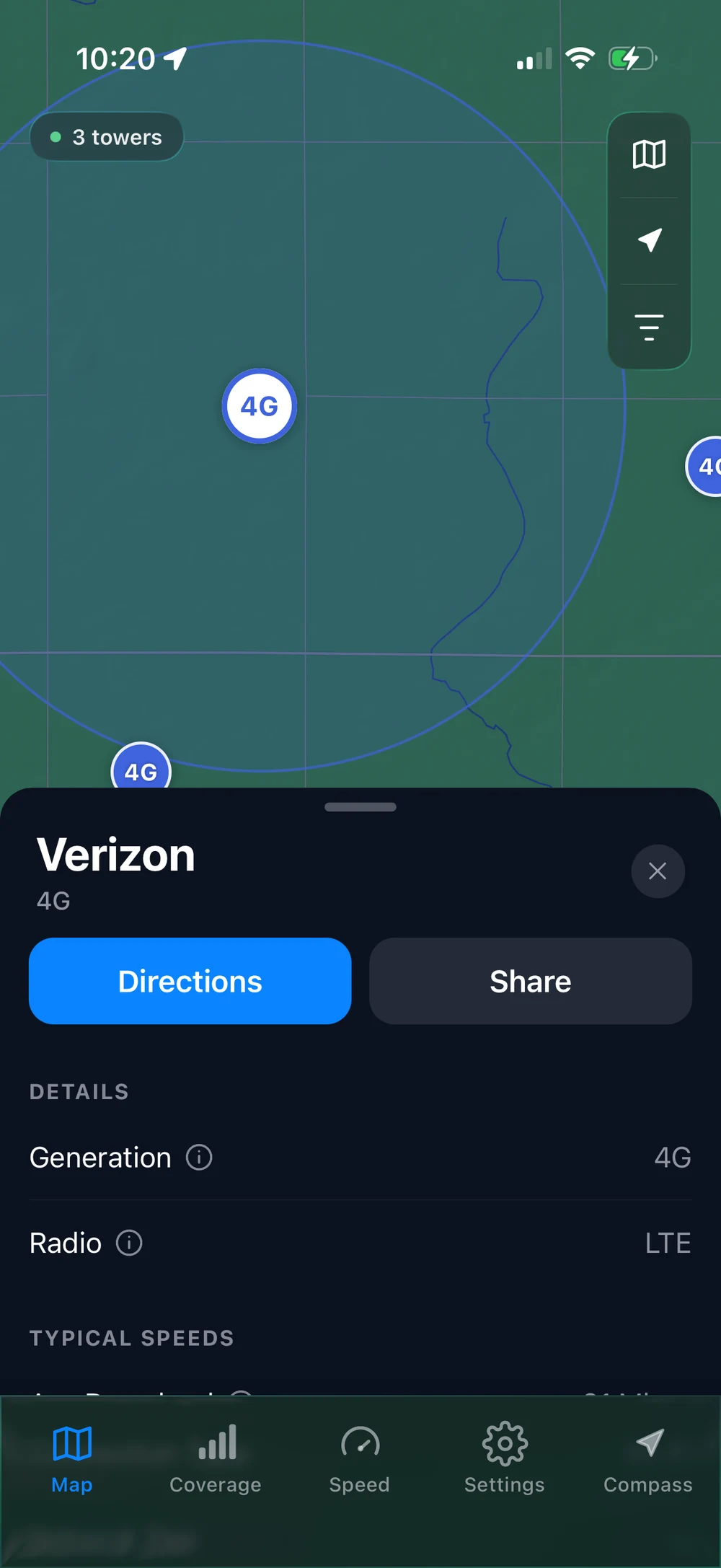
The screenshot shows a selected Verizon 4G tower, a blue range circle, and a details panel. You can see the selected marker, the surrounding area, and the carrier information without switching between several screens.
- Choose a tower on the map. You can also use Compass and Find it to select the nearest mapped result.
- Look at the displayed range. Use the circle as visual context for the area around that tower.
- Read the details below. Check the carrier and network generation instead of judging a marker by distance alone.
- Compare the area with coverage information. Use the coverage view and the carrier’s official map to add context.
The example’s 4G and LTE labels describe the selected tower’s information. They are not a live speed reading or a promise about what your phone will receive.
Treat the circle as a guide, not a hard boundary
A clean circle is easy to read. Real reception should not be assumed to follow that shape, or to stop exactly at its edge. Being inside the circle does not guarantee service; being outside it does not prove that service is impossible.
What the screenshot establishes: Open Signal displays a range view for a selected tower. It does not establish a measured service boundary at every point in that circle.
Terrain, buildings, the device, and network conditions can affect the experience. These are among the factors listed in Verizon’s coverage information. For a particular room, campsite, or work location, an actual connection test is more useful than assuming the circle tells the whole story.
There is no single range number to rely on
Do not pick a universal distance and assume every tower within it will work for you. The map provides context for exploration; it does not remove the need to check the network and the location.
Similarly, the closest mapped tower may not belong to your carrier. Start by reading its details, then compare nearby results. If you want an area-wide view, see our guide to reading a coverage map.
Use the view to ask better questions
- For a rural home: which relevant towers appear nearby, and what do connection tests show in the parts of the property you actually use?
- For a trip: does the carrier show coverage along the route, or only around individual destinations?
- For a hotspot: which position gives the most usable and repeatable connection, rather than just the closest-looking marker?
If you are setting up an antenna or booster, use the map as a starting reference and follow the equipment manufacturer’s setup instructions. The app does not measure your installation or guarantee an improvement.
Start with Find It, use the range view to understand the surroundings, and let the real connection at your location decide what works.
Product details and sources checked September 17, 2026. Written by the developer of Open Signal; external products belong to their respective developers.